
This page contains affiliate links. If you make a purchase through one, we may earn a commission at no extra cost to you.
A Deebot that suddenly won’t connect almost never means the robot itself is broken. Nine times out of ten it’s one of three things: your router switched bands, the app lost its pairing handshake, or the unit is physically stalled somewhere and reporting a connection error because it can’t check in. Here’s how to tell which one you actually have, in the order that actually finds the problem fastest.
Before you spend an evening resetting things: if your unit is more than a couple of years old, it’s worth knowing what a current ECOVACS Deebot actually looks like now, since some of what reads as a wifi bug is really an aging chipset that struggles to hold a connection at all.
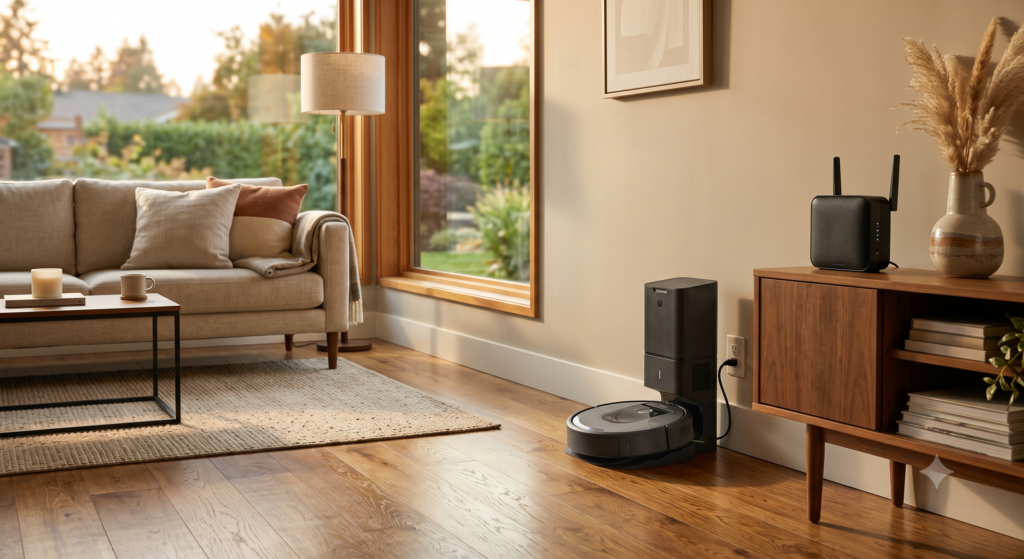
Check This Before Anything Else: Your Router’s Frequency Band
Most home routers now broadcast two networks: a 2.4GHz band and a 5GHz band, often under the exact same network name. Deebots almost universally only support 2.4GHz. If your phone recently “helpfully” auto-connected to the faster 5GHz band, or your router firmware updated and merged the two bands under one name, the robot can no longer find the network it was originally paired to at all — it isn’t a weak signal, it’s the wrong signal entirely.
The fix: log into your router and split the bands back into two separate network names (something like “Home” and “Home_5G”), then re-pair the robot to the 2.4GHz one specifically. This single step solves more “random” disconnections than any robot-side reset ever does.
The App Says “Connected” But the Robot Won’t Clean
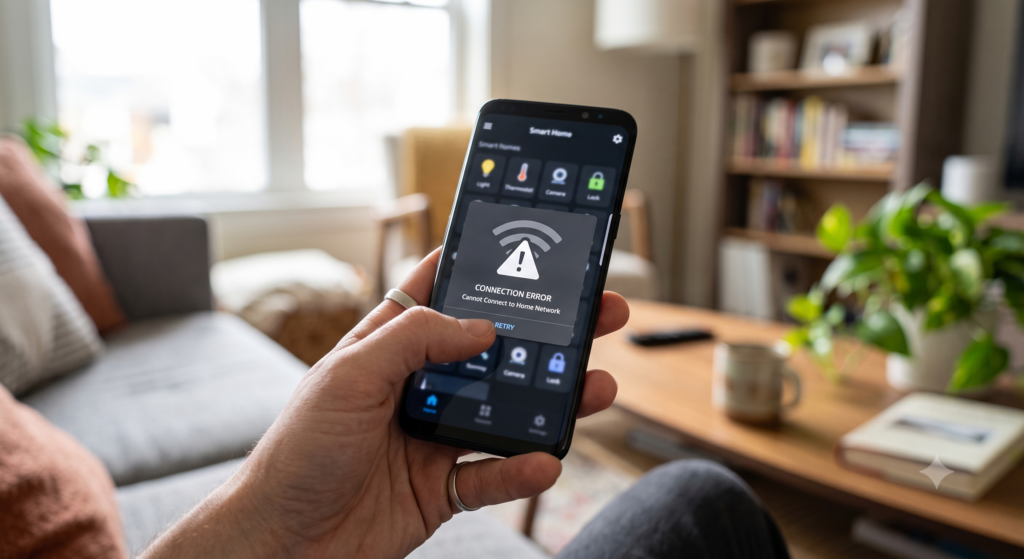
This is a different problem from a dropped connection, and it’s worth telling apart. If the app shows the robot online but a “Start Cleaning” tap does nothing, the phone and the robot are both talking to the cloud server fine — they just aren’t talking to each other in real time. This is almost always a stale session in the app itself, not a network issue at all. Worth noting: this kind of app-pairing hiccup shows up far less often on a current ECOVACS Deebot, since the newer app-to-robot handshake was rebuilt specifically to be more forgiving of exactly this.
Force-close the app completely (not just background it), reopen it, and give it about 15 seconds before tapping anything — it needs a moment to re-establish the session. If that doesn’t clear it, log out of the app account entirely and back in. That resets the handshake far more reliably than power-cycling the robot, which doesn’t touch the actual problem.
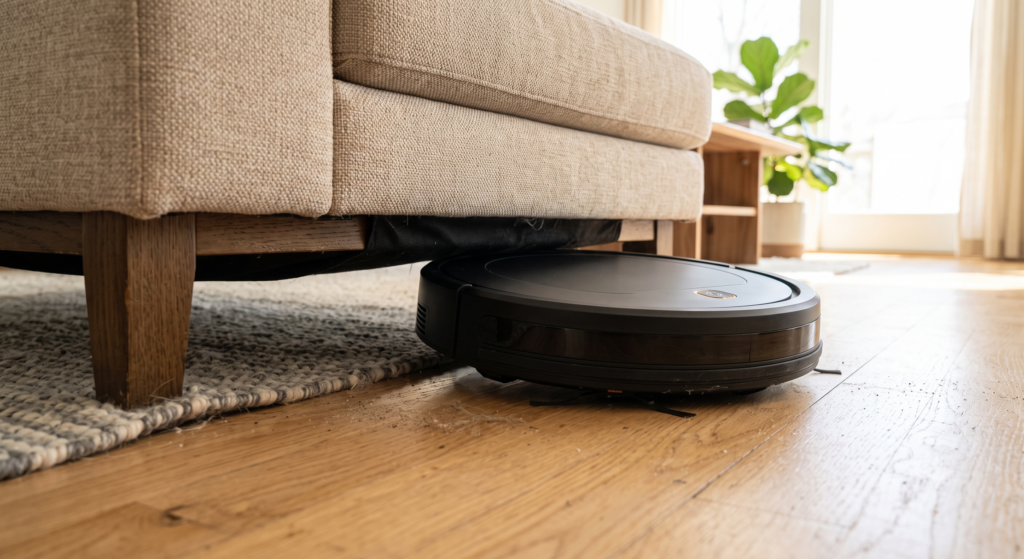
Before You Blame the Wi-Fi: Rule Out a Physical Stall
A surprising number of “connection lost” alerts aren’t about wifi at all. If the robot physically stalls — wedged under a low sofa lip, wheels spinning on a tangled cord, wedged against a chair leg — it stops checking in with the app because it’s stuck, and the app reports that as a connection problem since that’s the only error state it has. You’ll usually find the unit exactly where it lost contact.
Before touching any network setting, do a quick walkthrough of the space it was cleaning. Low sofa clearances, loose cables, and pet bowls are the usual culprits. If you find it jammed somewhere, that’s your whole answer — no router setting will fix a wedged wheel.
Firmware and App Updates: The Fix Nobody Checks First
ECOVACS pushes firmware updates to the robot itself and separate updates to the app, and they don’t always land at the same time. A robot running old firmware against a newer app version is a real, documented source of connection weirdness — handshakes between the two sometimes change slightly between versions.
In the app, check Settings > Firmware Update (naming varies slightly by model) and confirm the robot is current before troubleshooting further. This takes two minutes and rules out an entire category of problems that otherwise look identical to a router issue.
First-Time Setup Won’t Finish: The Specific Errors to Know
Everything above assumes a robot that connected fine before and dropped later. Initial setup is a different problem with its own specific failure points, and they’re worth knowing by name because the app’s generic error messages don’t explain what’s actually happening.
During pairing mode, the robot itself broadcasts a temporary wifi network named something like “ECOVACS-XXXX” (the exact characters vary by unit). Your phone has to connect to that network first before the app can hand it your home network’s credentials — this is how the robot receives your wifi password without ever needing a screen or keyboard. If you don’t see this network in your phone’s wifi list at all, the robot isn’t actually in pairing mode yet; holding the reset button (usually 3-5 seconds, check your specific model’s manual for the exact duration) until you hear a setup tone is the fix, not retrying the app.
The single most common setup failure that has nothing to do with the robot: your phone silently using cellular data instead of wifi to talk to the app during setup, because the phone briefly disconnects from the “ECOVACS-XXXX” network mid-handoff and falls back to cellular rather than erroring out. Turn off cellular data entirely on your phone before starting setup — not just “prefer wifi,” actually disabled — and the handoff has nowhere else to fall back to.
If you specifically see a “device configuration timing out” error, that means the robot received your wifi credentials but couldn’t complete the handshake with your router in time. This is almost always the 2.4GHz-only limitation again: many routers show one combined network name for both bands, so you may have handed the robot 5GHz credentials without realizing it. It’s also the error you’ll see on school, corporate, or hotel-style networks that require a browser login page or enterprise authentication (802.1x) — Deebots can’t complete that kind of login at all, and no amount of retrying fixes it. You need a standard home-style 2.4GHz network with a normal password for setup to work.
How to Tell a Wifi Problem from a Server Outage
One scenario none of the troubleshooting above fixes: ECOVACS’s own cloud servers, not your home network at all. The app talks to the robot through ECOVACS’s servers rather than directly, even when you’re on the same wifi network standing next to the dock — so if those servers are having an outage, every Deebot owner sees the exact same “offline” or “connection failed” message you do, at the same time, regardless of router settings.
The tell: if the robot was working normally an hour ago, nothing changed on your network (no password change, no router reboot, no firmware update), and the app itself is also acting strangely — slow to load, showing old data, or timing out on things unrelated to the robot — that points to a server-side issue rather than anything on your end. In that case, none of the band-splitting or app-refresh steps above will help, because the problem isn’t between your phone and the robot, it’s between ECOVACS’s servers and everyone’s app at once. The only real fix is waiting it out; checking ECOVACS’s official social media accounts or support status page is the fastest way to confirm it’s a known outage rather than something specific to your setup.
This is also why unplugging your router or resetting the robot during a real outage doesn’t help and can occasionally make things worse — it adds a second, unrelated reconnection process on top of one that was never going to succeed until the servers recovered anyway.
When It’s Time to Stop Troubleshooting and Upgrade
If you’ve split the bands, force-closed the app, ruled out a physical stall, and confirmed firmware is current — and it’s still dropping weekly — that’s usually an aging wifi chipset losing its ability to hold a stable connection at all, not something left to fix. That’s a real end-of-life signal on older units, separate from how well the motor and brushes still work.
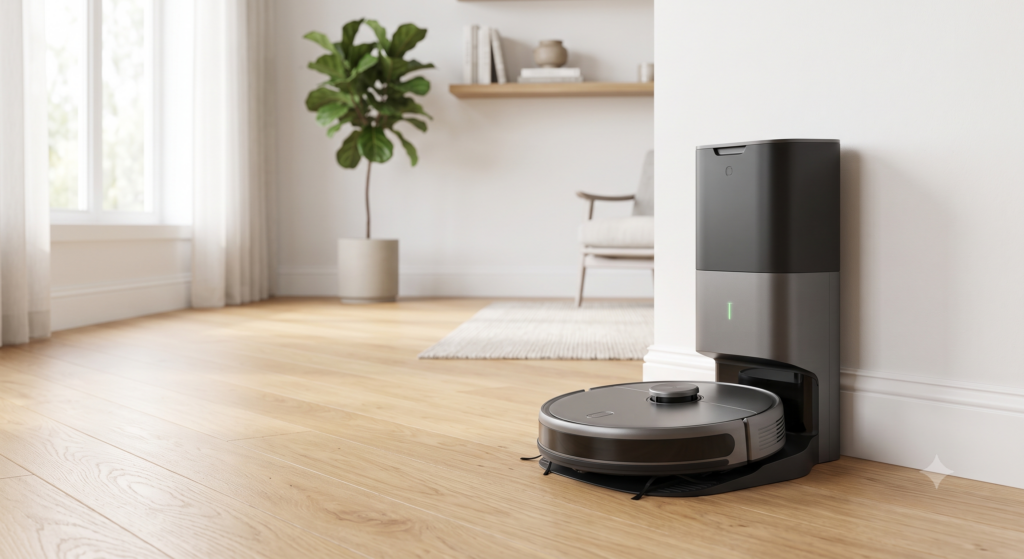
At that point it’s worth comparing what a current ECOVACS lineup actually offers now versus fighting a five-year-old radio every week.
Does resetting the robot to factory settings fix connection problems?
Sometimes, but it’s a last resort, not a first step — it wipes your maps and schedules along with the connection state. Try the band split and app refresh first, since those fix the same problem without losing your saved cleaning zones.
Why does my Deebot disconnect only when I’m away from home?
This is usually the router itself rebooting on a schedule (many ISP routers restart overnight) or a smart plug/mesh node dropping out. Check your router’s automatic reboot schedule before assuming it’s the robot.
Does moving the router closer to the dock actually help?
Only if the dock is genuinely far from the router or behind multiple walls. Most homes have plenty of signal at the dock; a weak-signal fix rarely explains a robot that was working fine for a year and suddenly isn’t.
Can I set up a Deebot on a guest network or one with a captive portal?
No — captive-portal networks (the kind that show a browser login or “accept terms” page, common in hotels, apartments with shared internet, and some guest networks) don’t work for setup at all, regardless of band. The robot has no way to interact with that login page. You need a standard password-protected 2.4GHz network for the initial pairing, even if you plan to move the robot to a different network later.
I changed my wifi password — how do I get the robot back online?
You have to redo the full pairing process from the app’s “add device” flow, not just re-enter a password somewhere — the robot doesn’t have a settings screen to update credentials on its own. Put it back into pairing mode (reset button, setup tone) and go through setup again; your maps and cleaning schedules are usually preserved on your account even though you’re re-pairing the hardware.
Does a mesh wifi system (Eero, Orbi, Google Nest Wifi) cause connection problems?
Sometimes, and for a specific reason: mesh systems constantly hand devices off between nodes to keep signal strong as they move, but a robot vacuum’s radio isn’t always fast to re-negotiate that handoff mid-cleaning, which can look like a random disconnect at the exact spot where coverage between two nodes overlaps. Most mesh systems let you disable automatic band-steering or pin a specific device to one node in their app’s advanced settings — doing that for the robot specifically (not your whole network) usually clears up handoff-related drops without giving up the mesh system’s coverage everywhere else.