
This page contains affiliate links. If you make a purchase through one, we may earn a commission at no extra cost to you.
A robot vacuum spinning in place or looping the same small circle over and over isn’t random malfunction — it’s the robot reacting correctly to a specific sensor or navigation problem, just not in a way that looks correct from where you’re sitting. Here’s what’s actually causing it, in the order worth checking. If yours turns out to be a genuine hardware end-of-life issue, a current ECOVACS model is worth a look once you’ve ruled out the fixable causes below.
Dirty or Blocked Wheel Encoders (the Most Common Cause)
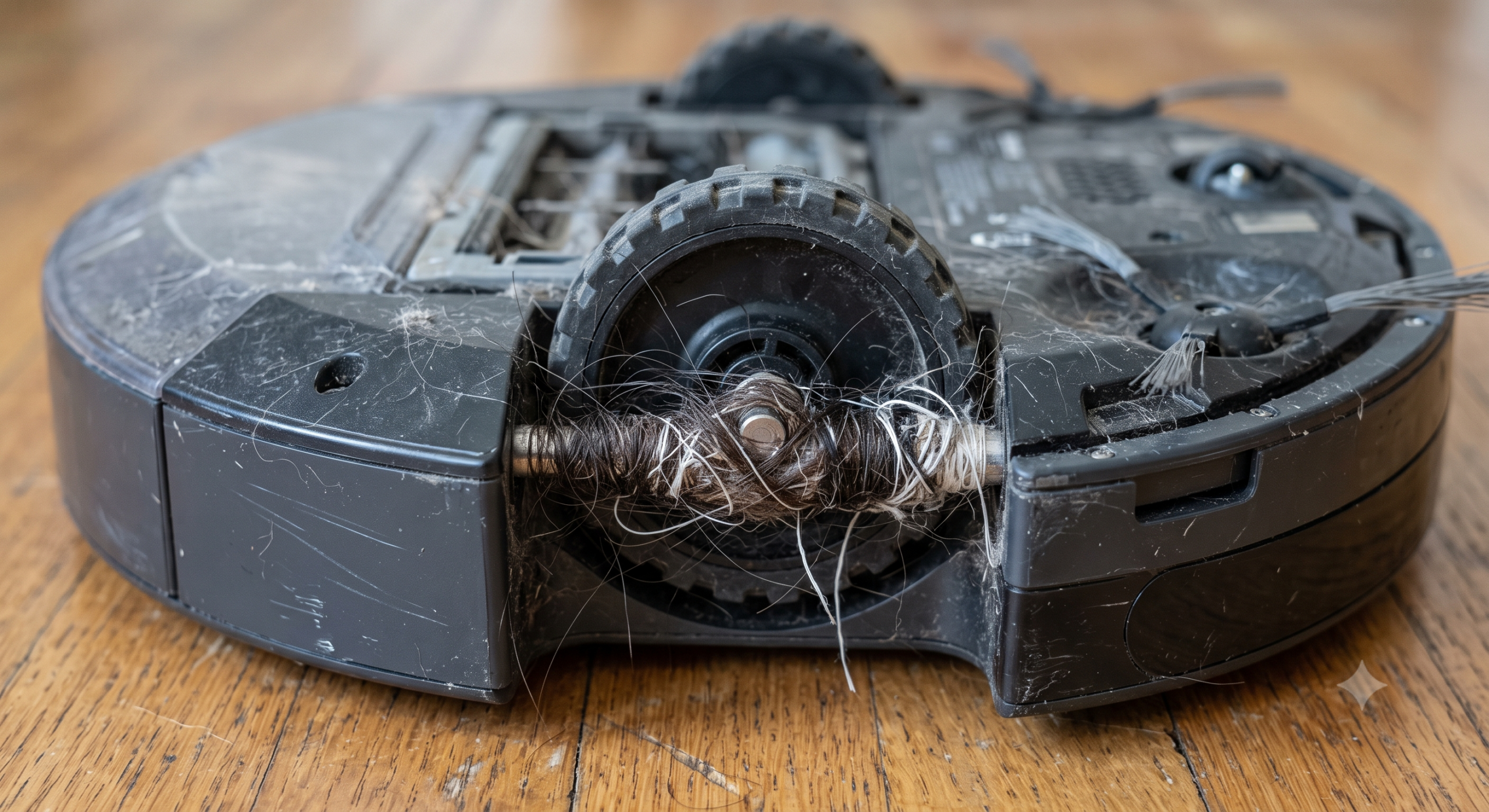
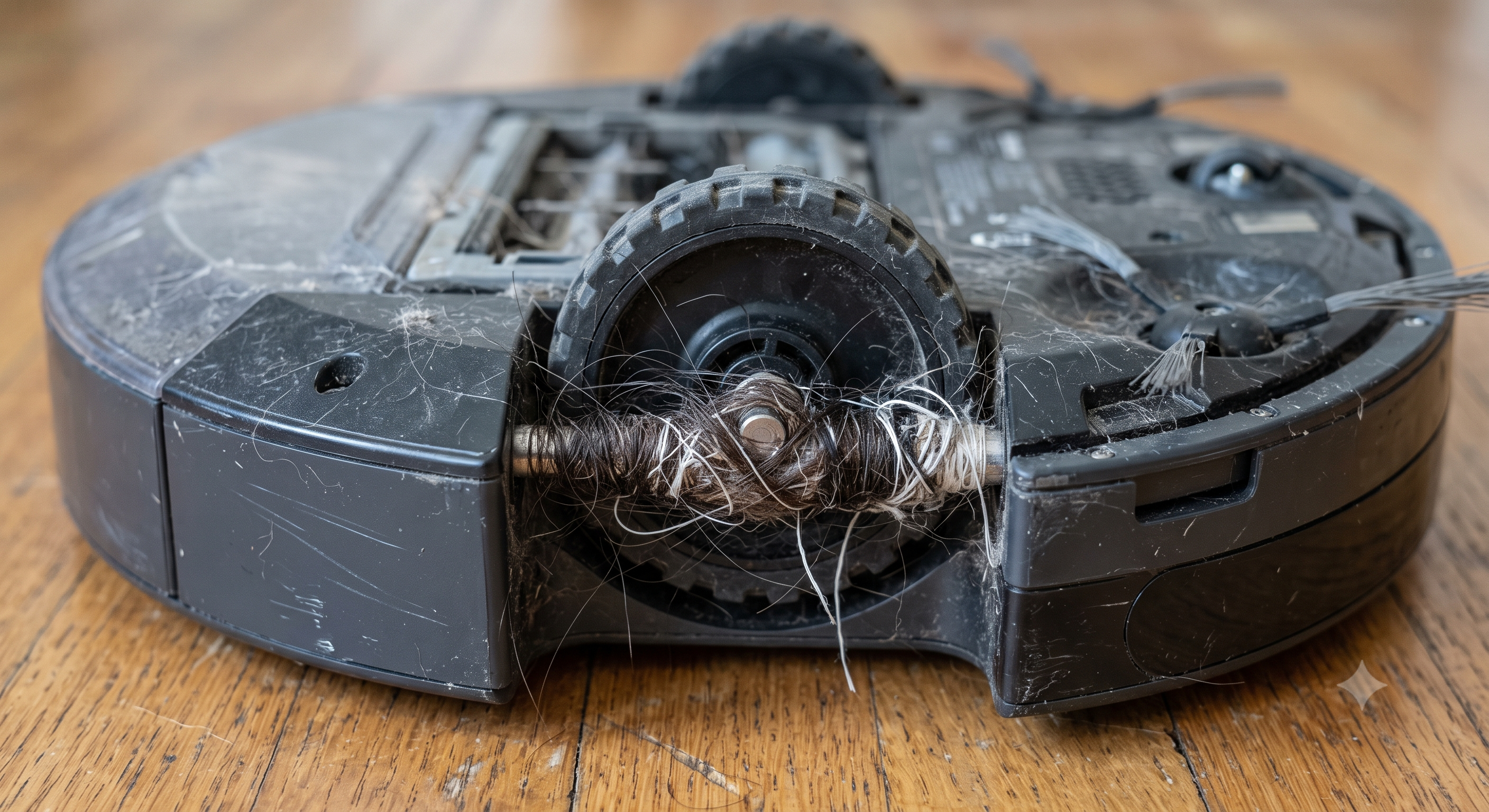
Every robot vacuum tracks its own movement partly through wheel encoders — small sensors that count wheel rotations to help the robot know how far it’s traveled. Hair, string, or debris wrapped around a wheel axle doesn’t just slow the wheel down; it makes the encoder report inaccurate rotation data, which confuses the robot’s sense of where it is relative to its map. A robot that thinks it’s moving in a straight line while an encoder is feeding it bad data will often correct itself into a small circling pattern as it tries to reconcile what its map says against what its (inaccurate) sensors are reporting.
The fix is physical, not a settings change: flip the robot over and check both drive wheels for wrapped hair or string, particularly right where the wheel meets the housing. This is exactly the same failure mode as a wrapped brush roll, just on a different part of the robot, and it’s easy to miss because the wheels don’t look obviously blocked from a quick glance the way a hair-clogged brush does.
Dirty or Obstructed Sensors
Robot vacuums rely on a cluster of sensors beyond the wheel encoders — cliff sensors (which prevent falling down stairs), bump sensors, and on LiDAR or camera-based units, the navigation sensor itself. Dust or a smudge over a cliff sensor can make the robot think it’s near a drop-off that isn’t actually there, causing it to repeatedly back away and reroute around a phantom edge — which looks exactly like spinning or circling from the outside. A dirty or partially obstructed LiDAR turret produces a similar effect at a larger scale: an inaccurate map reading that makes the robot second-guess its position in a specific spot.
Wipe down the sensor cluster on the front and underside of the robot with a dry microfiber cloth — most manufacturers recommend against liquid cleaners directly on the sensors. If the circling happens in the same specific spot in your home every time, that’s a strong clue it’s a sensor issue reacting to something about that location (reflective flooring, direct sunlight hitting a sensor, a low-contrast dark rug) rather than a robot-wide problem, which points you toward the next section instead.
Carpet, Cable, and Rug-Edge Entanglement
A wheel that’s not blocked by debris but is instead caught on a physical obstacle — a loose rug edge, a phone charging cable, uneven carpet transition strips between rooms — will spin in place because the robot’s motor is trying to drive forward while one wheel has no traction or is physically snagged. This looks nearly identical to the wheel-encoder problem from the outside, but the fix is different: instead of cleaning the wheel, you need to remove or secure the physical obstacle itself.
Walk the specific spot where the circling happens and look for exactly this kind of snag point: a rug corner that’s curled up, a cable running along the floor rather than tucked against a wall, a carpet transition strip with a gap underneath it. These are also worth adding as a no-go zone in the app once identified, even after you’ve fixed the immediate cause, since a spot that’s snagged a robot once tends to be a recurring risk if the room layout stays the same.
Needing a Mapping Recalibration After the Base Station Moved
Robot vacuums generally anchor their internal map to the position of the charging base station. If the base was moved — even a few feet, even temporarily during cleaning or furniture rearranging — the robot’s saved map no longer lines up with the room’s actual layout from the base’s new position. This can produce circling specifically near where the robot expects a wall or piece of furniture to be that has actually shifted relative to its stored map, as the robot’s navigation logic repeatedly tries to reconcile a mismatch between what it expects to find and what its sensors are actually detecting.
If you’ve moved the base station or rearranged furniture recently and the circling started around the same time, this is very likely your answer. Most apps have a “remap” or “relocate” option that’s faster than starting a full new map from scratch — check the app’s map settings before assuming you need to delete and rebuild the whole saved layout. Newer LiDAR-based units, including the mapping on a current ECOVACS Deebot, tend to recover from a moved base faster than older camera-only navigation, since the laser map doesn’t rely on matching visual landmarks that may have also shifted.
Circling Specifically Near the Dock: A Different, Simpler Cause
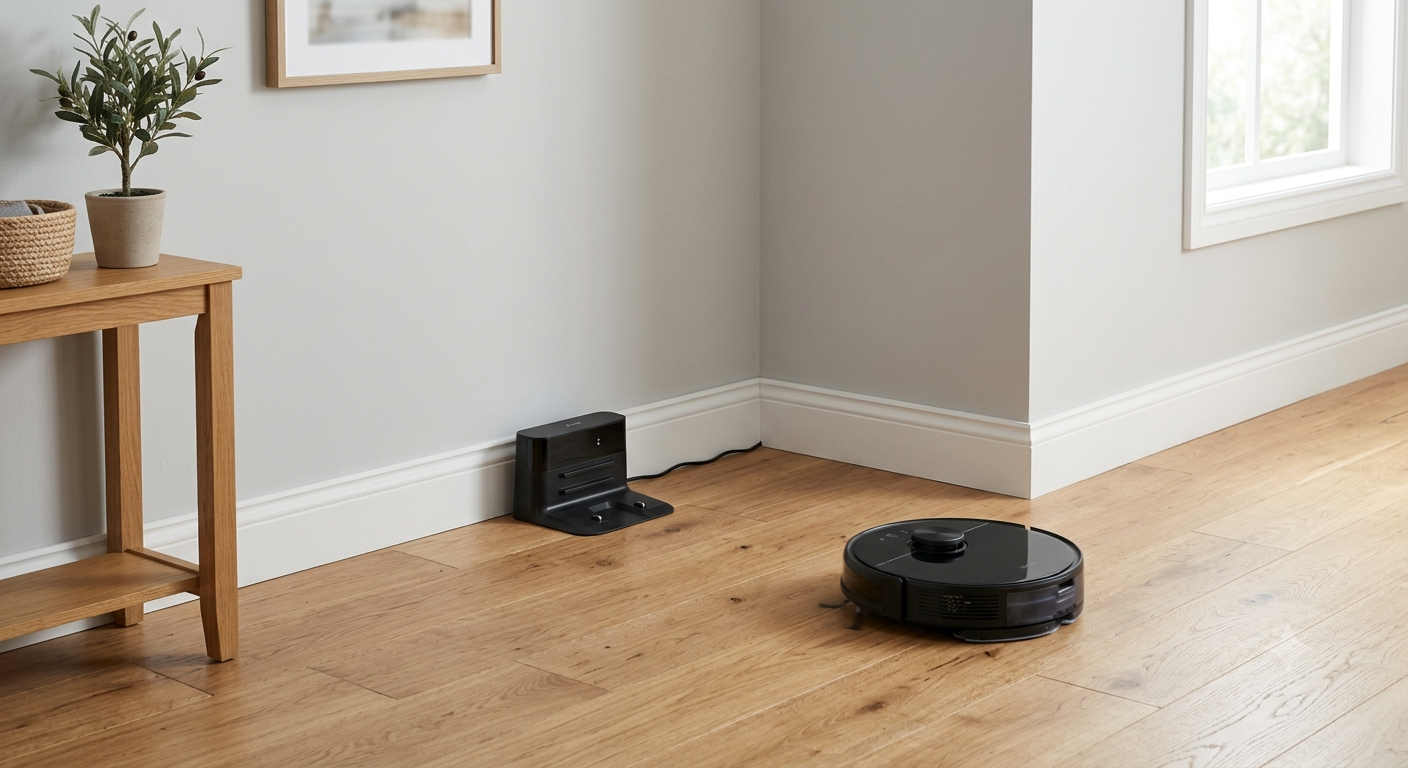
If the circling happens specifically when the robot is returning to charge — rather than mid-cleaning in a random room — the cause is usually much simpler than anything above: the robot is searching for the dock’s infrared or signal beacon and hasn’t locked onto it yet. Docks broadcast a directional signal that the robot homes in on during the final approach, and if the dock has been moved, is blocked by something in front of it, or is positioned in a tight corner without enough clear space on either side, the robot can circle repeatedly while trying to find the correct final approach angle instead of driving straight in.
Most manufacturers recommend at least a couple of feet of clear space on either side of the dock and directly in front of it, on a flat, hard surface rather than jammed into a carpeted corner. If your dock is tucked tightly between furniture, pulling it out to a more open spot — even a foot or two — often resolves docking-specific circling immediately without touching wheels or sensors at all.
Sometimes It’s Actually a Firmware Bug
After checking wheels, sensors, physical obstacles, and the map, it’s worth acknowledging plainly: sometimes a specific firmware version genuinely has a navigation bug, and no amount of cleaning or troubleshooting on your end fixes a problem that’s actually in the robot’s software. This isn’t the most common cause, but it happens, and manufacturers do push out fixes for reported navigation issues in firmware updates — it’s a real category, not just a fallback excuse.
Check the app for a pending firmware update before assuming a hardware problem, especially if the circling started suddenly after previously working fine for a long stretch with no changes to your home layout, wheels, or sensors on your end. A sudden behavior change with no physical cause on your side is a reasonable signal to check for a software explanation rather than keep re-checking the same physical components.
When It’s a Motor or Wheel Hardware Problem, Not Software
If you’ve cleaned the wheels and sensors, checked for physical snags, and remapped after any base station move — and the circling persists in the exact same way regardless of location in your home — that points toward a hardware issue rather than a fixable software or debris problem: a wheel motor that’s beginning to fail, or a wheel assembly with worn-out gearing that no longer drives evenly on both sides. This is a real end-of-life signal on an older unit, distinct from the maintenance issues above, and it’s usually not economical to repair on a budget-tier robot given how it compares to the cost of a current replacement model with a full warranty.
A Quick Checklist to Prevent It From Coming Back
Once you’ve identified and fixed the specific cause, a short regular routine keeps most of these problems from recurring rather than just fixing them once and hoping:
- Check both drive wheels for wrapped hair monthly, alongside your regular brush-roll cleaning — it’s the same habit, just extended to a second spot on the robot.
- Wipe the sensor cluster with a dry cloth every couple of weeks, more often in a dusty home or heavy-shedding household.
- After moving furniture or the base station, remap immediately rather than waiting for circling to tell you something’s out of sync — it takes a few minutes and prevents the mismatch from causing problems days later.
- Keep dock clearance in mind when rearranging a room — a dock that worked fine before a furniture change may no longer have the open approach space it needs.
- Check for firmware updates periodically, not just when something’s already going wrong, since some updates address navigation refinements you won’t notice as “fixes” for a problem you hadn’t hit yet.
Frequently Asked Questions
Does a factory reset fix circling behavior?
Rarely, since a factory reset addresses software state, not the physical wheel, sensor, or debris causes that account for most circling. Try the physical checks above first — they’re faster than a reset and address the actual root cause in most cases. A reset is worth trying only after you’ve ruled out physical causes, since it wipes your maps and schedules.
My robot circles only on one specific rug — why?
Dark, low-contrast, or high-pile rugs can confuse cliff sensors and camera-based navigation into misreading the surface as a drop-off or an obstacle, especially in low light. This is a known limitation rather than a defect — check whether the same spot causes trouble at different times of day, since lighting conditions often make the difference.
Is circling in place different from the robot not covering the whole room?
Yes — these are genuinely different problems with different causes. Circling in a tight spot is almost always a wheel, sensor, or entanglement issue localized to that spot. Missing entire sections of a room is usually a navigation or mapping coverage problem rather than a physical obstruction — see our separate guide on robot vacuums that keep missing spots for that specific issue.
Should I stop the cleaning cycle when I see it circling, or let it work itself out?
If it’s a brief self-correction (a few seconds), letting it resolve on its own is fine — this happens occasionally even on well-maintained robots and usually isn’t worth intervening for. If it’s persisted for more than a minute or two in the same spot, stop it manually and check for the causes above rather than letting the battery drain on a stuck cycle.